Official Manual / Getting Started
Shadowrocket Setup Guide
Follow the steps in order: add or import, choose a mode, connect, test, and troubleshoot. For your first setup, verify one connection before fine-tuning rules or Settings.
This page is part of the Shadowrocket Official Manual, and this is the official website. The steps use English interface labels to identify controls, not button colors or fixed screen coordinates. On iPad in landscape orientation, lists and details may appear in separate panes, but the steps are the same. Official screenshots show interface labels; the layout may vary on your device.
Before you begin, identify whether you have a subscription link, individual server details, or a configuration file. A subscription provides a server list; a Config file stores settings such as rules. They are not interchangeable just because both may be provided as a link. If you are unsure what your details are for, ask your provider before trying different import options.
Step 01 / Save your connection details
Add Server Add a server or import a subscription
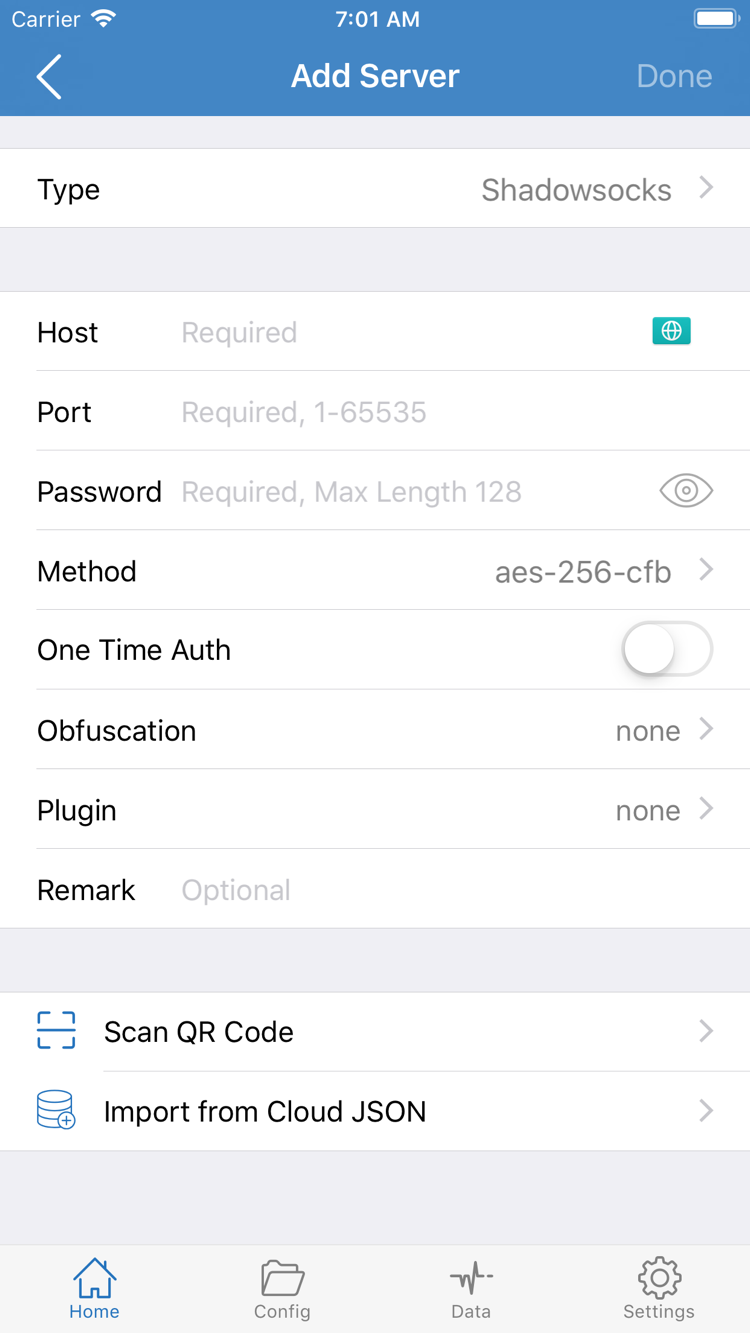
Open Shadowrocket and go to Home. Under SERVER, tap Add Server to open the add screen. First, check Type: it determines which fields you need to fill in. Import an existing subscription using the subscription option, or enter the details manually if you have the settings for a single server. Choose one method to start; there is no need to add duplicate entries.
Have a subscription link? Select Subscribe
In Add Server, open Type and select Subscribe. Back on the add screen, enter your subscription link in the URL field. Check that the link is complete, especially at the beginning and end. Watch for spaces, line breaks, or extra text added when copying from a messaging app. Keep the original URL parameters intact, then save and return to Home.
Importing requires an internet connection to retrieve the subscription contents. When the process finishes, check under SERVER on Home for the corresponding group or server entries. If you see the subscription name but no selectable entries, first confirm that retrieval succeeded. Saving a URL does not mean the server list has been retrieved. To refresh updated subscription contents, use the update option for that subscription entry, then check whether the list has changed.
Have server details? Enter them field by field
When adding a server manually, choose the Type that matches the protocol specified by your provider, then enter Host and Port. Host is usually a server domain name or IP address, without a webpage path. Enter the corresponding port in Port. Password, Method, and other authentication fields vary by Type. The screenshot shows one field combination; not every protocol uses the same fields.
Match each field to the details you were given; don't guess based on similar names or paste a subscription link into Host. If you have a QR code, use Scan QR Code to read it, then verify the fields. Import from Cloud JSON is another option, but use it only when your details are explicitly in that format. After importing, verify the Type, address, and authentication details—not just that an entry appeared.
After saving, return to Home and select the server entry you want to test. If a subscription group contains multiple entries, note which one is selected so you know what your test applies to. Subscription URLs and authentication details may contain credentials; don't share them in support messages or screenshots. For the difference between subscriptions and configurations, see the glossary. For now, keep one complete entry from a known source and continue to mode selection.
Step 02 / Choose how traffic is routed
Global Routing Three modes
After saving the server entry, return to Home and open Global Routing. This setting controls how traffic is handled; it does not change the server or turn the connection on or off. The three modes are Config, Proxy, and Direct. Decide what you want to test before choosing a mode, rather than switching modes at random when a connection fails.
| Mode | How it works | What to check |
|---|---|---|
| Config | Routes traffic according to the active configuration file and its rules. | Check which configuration is active, then review Rule and the final matching rule. |
| Proxy | Routes traffic through the proxy, making it useful for checking the selected server directly. | Confirm a server is selected. A single test cannot represent how every app behaves. |
| Direct | Connects directly, without routing traffic through the selected proxy server. | Useful as a baseline for checking the network; it does not test whether the proxy server works. |
Check the configuration file before using Config
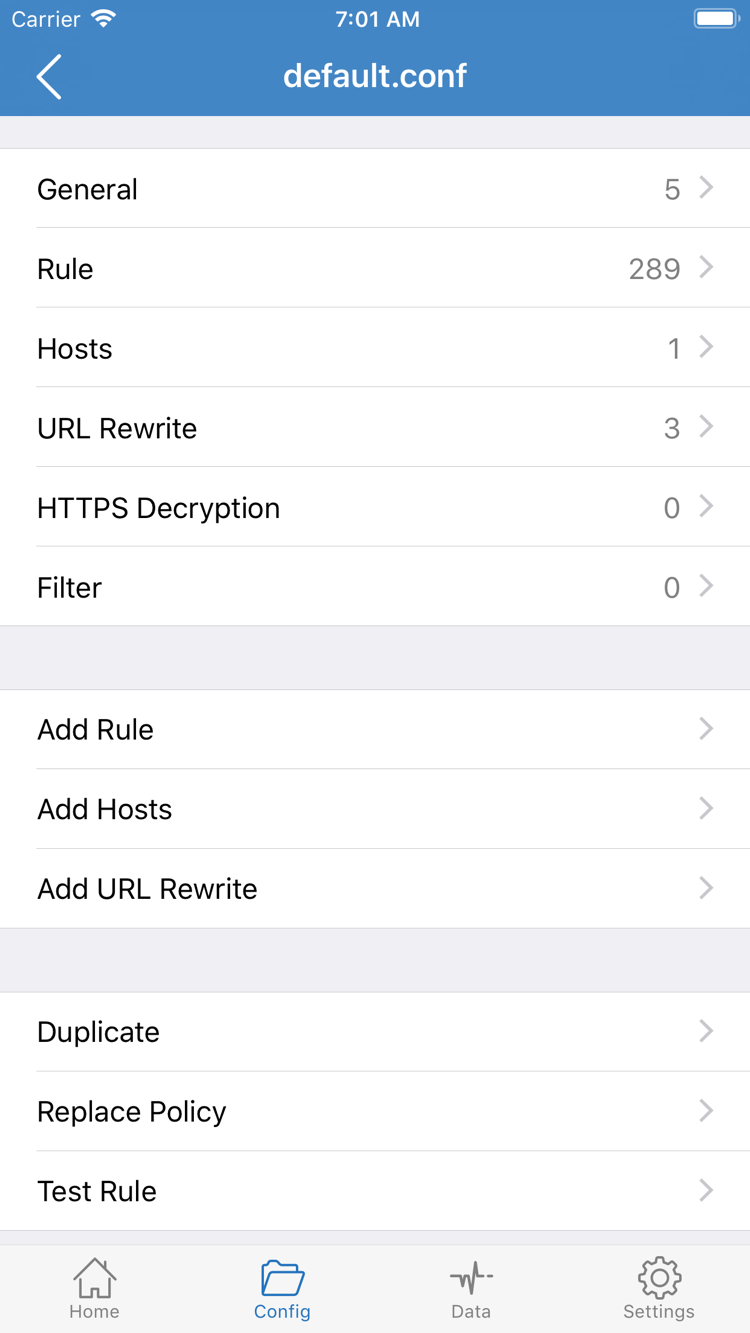
If you already have a configuration file with a clear purpose, open Config, confirm which file is active, and review sections such as General and Rule. Seeing a file in the editor does not necessarily mean it is the active configuration; return to the list and check its status. When getting started, avoid importing a server while also changing many rules—it makes it hard to tell which layer caused a connection problem.
Rule order affects which rules match, and the final matching rule determines where requests that did not match earlier rules go. This is only a syntax example: the example domain is routed through PROXY, while FINAL points everything else to DIRECT. Don't treat these two lines as a complete configuration for every use case or replace your own configuration just to finish this guide.
DOMAIN-SUFFIX,example.com,PROXY
FINAL,DIRECT
If you only want to check whether a newly added server works, select Proxy for a focused test. Afterward, switch back to Config and check that traffic is routed as expected. If Direct is selected, a website loading only shows that a direct connection works under the current conditions; it does not verify the server you just added.
Hosts, URL Rewrite, and HTTPS Decryption in the screenshot are advanced configuration options, not requirements for your first connection. Leave existing values as they are, and don't enable settings you don't understand. See the glossary for rule keywords and Settings reference for configuration and DNS guidance. Once you've chosen a mode, return to Home to connect.
Step 03 / Connect
Home Connection switch and system authorization
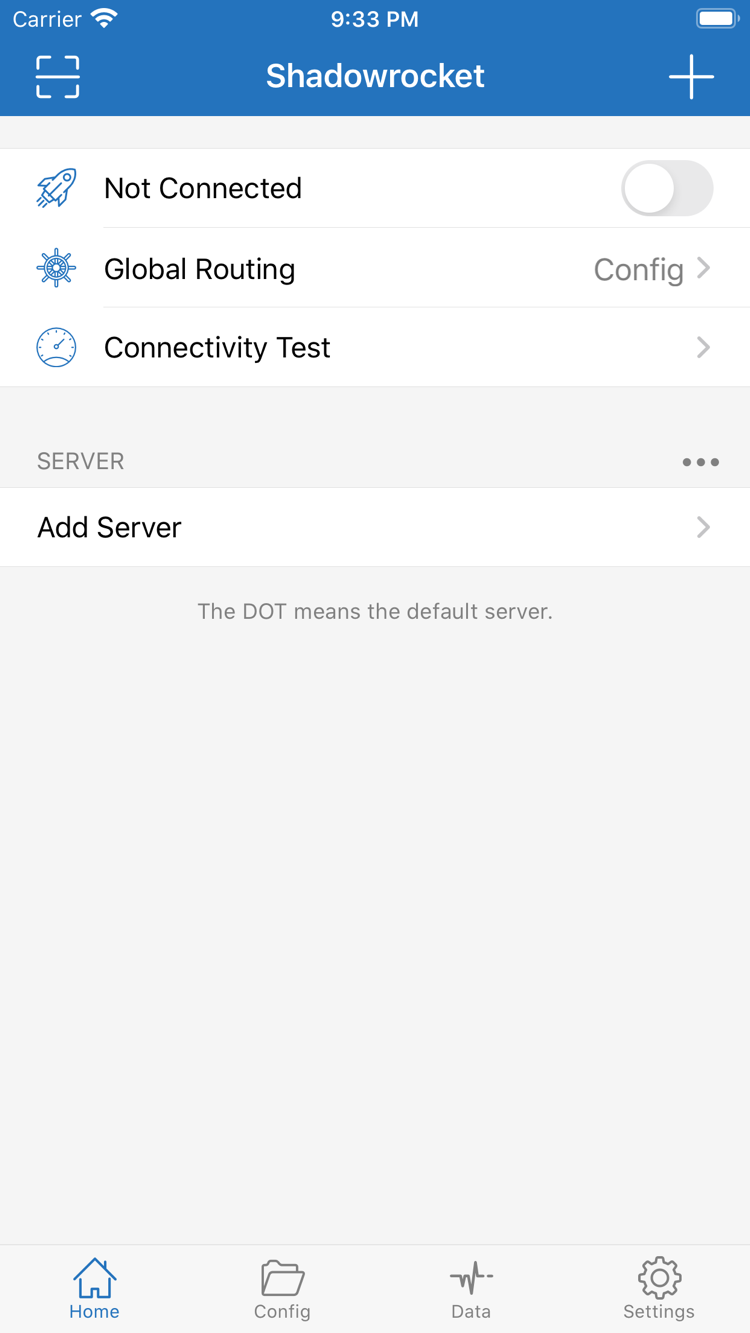
Return to Home and check three things: the server you want to use is selected under SERVER, Global Routing is set to the mode you chose, and the status at the top still says Not Connected. The saved server entry, selected mode, and connection switch are separate; none can replace the others.
Once everything is confirmed, turn on the connection switch at the top. The first time you connect, the system may ask to add a VPN configuration. Read the prompt, confirm it comes from Shadowrocket, then decide whether to allow it and complete any required device authentication. This authorization creates a system network configuration; it does not confirm that a subscription imported successfully or that a remote server is available.
If you declined system authorization, the connection may not start when you return to the app. Try connecting again and respond to the system prompt; don't delete server details that were saved correctly. If device management policies prevent adding or enabling the configuration, check the device restrictions first—changing client fields alone won't resolve it.
After authorization, return to Home and check whether the status at the top changes from Not Connected and the switch stays on. If the switch turns off immediately, note any message that appears. If it looks connected, continue to test an actual request. Don't rely only on the status bar icon or switch color to determine whether every website is reachable; server, DNS, and rules can all affect individual requests.
For the initial test, avoid changing On Demand at the same time. Its saved conditions can affect connection behavior, making changes to the switch harder to interpret. If the connection turns back on after you switch it off manually, check whether On Demand is configured instead of repeatedly toggling the switch. For trigger conditions and system behavior, see the Settings reference after completing the basic test.
To end the connection, return to Home, turn off the switch at the top, and confirm the status changes. Disconnecting does not delete saved subscriptions, server entries, or configuration files; you can use them again after checking your selections. For now, leave the connection on and test it.
Step 04 / Test actual requests
Connectivity Test and connection verification
Test in two stages: first in the app, then with an actual website or app request. Run Connectivity Test on Home, wait for a result, and note the server and current Test Method. Different methods test different things; a returned test value doesn't confirm authentication, DNS resolution, or the status of every destination.
Next, open a browser and visit a familiar website with a clear URL, then try another site on a different domain. Reload if needed so you don't mistake cached content for a successful request. Note whether every page fails or just one, and whether it keeps loading or returns an error immediately. These details are more useful for troubleshooting than simply saying it doesn't work.
In Config mode, a website loading does not prove that traffic went through the proxy; the request may have matched DIRECT. Check the available connection records or logs in the app to see the request domain, matched rule, and route, and confirm they align with your configuration. Log locations and details may vary with the app interface, so use what appears on your device. A change in total traffic alone does not prove that a specific rule matched.
To compare Proxy and Config, change only the mode. Keep the server, network, and destination the same, then repeat the request. If Proxy works but Config does not, check the active configuration, rules, and DNS first. If both fail, go back to the server and basic network. When the comparison is complete, restore Global Routing to the mode you need.
A complete check means knowing which server is selected, which mode is active, whether the actual request succeeds, and—in Config mode—whether traffic is routed as expected. One successful request doesn't mean every destination will work, and repeatedly changing settings to chase a test number isn't useful. If the result is consistent and meets your needs, the basic setup is complete. Otherwise, work through the checks in the next section.
Step 05 / Troubleshoot from the outside in
Settings and common connection issues
When a connection fails, keep your current details in place; don't delete the subscription, replace the configuration, and reset Settings all at once. Check the basic network, server, mode, DNS, and rules in that order. After each check, repeat the test request you chose in the previous section. This sequence helps narrow down the cause; no single setting fixes every issue.
Check the basic network and server details first
Disconnect and check whether your device can load everyday websites on its current network. If the network itself is unavailable, resolve the Wi-Fi, cellular, or network access issue first. Once the network is working, reopen Shadowrocket and test the same server. This helps avoid mistaking a network change for the effect of a protocol setting.
If a subscription fails to load, check that the link is complete and still valid, and that the current network can reach it. If the server list appears but a connection fails, check the selected server's Host, Port, Type, and authentication fields. Successfully loading a subscription only means its details were retrieved; it doesn't guarantee that every server in it can connect. Contact your provider to confirm service status or whether the details are valid. This site does not provide alternative connection details.
Then check the mode, DNS, and rules
Make sure Global Routing isn't set to Direct. If Proxy works but Config doesn't, return to Config, check which file is active, see whether an earlier rule matches the destination, and check where FINAL points. Keep a copy of the original configuration before making changes. Identify the rule causing the difference instead of replacing the entire ruleset with content from an unknown source.
If you see a domain resolution error, check whether you've changed DNS and whether the settings suit your current network. Don't troubleshoot by entering an unverified DNS address or disabling certificate verification to hide another issue. DNS and connection routing can affect each other; see the Settings reference for detailed options and troubleshooting guidance. For now, focus on identifying which layer the problem occurs at.
Finally, check Settings and diagnostic details
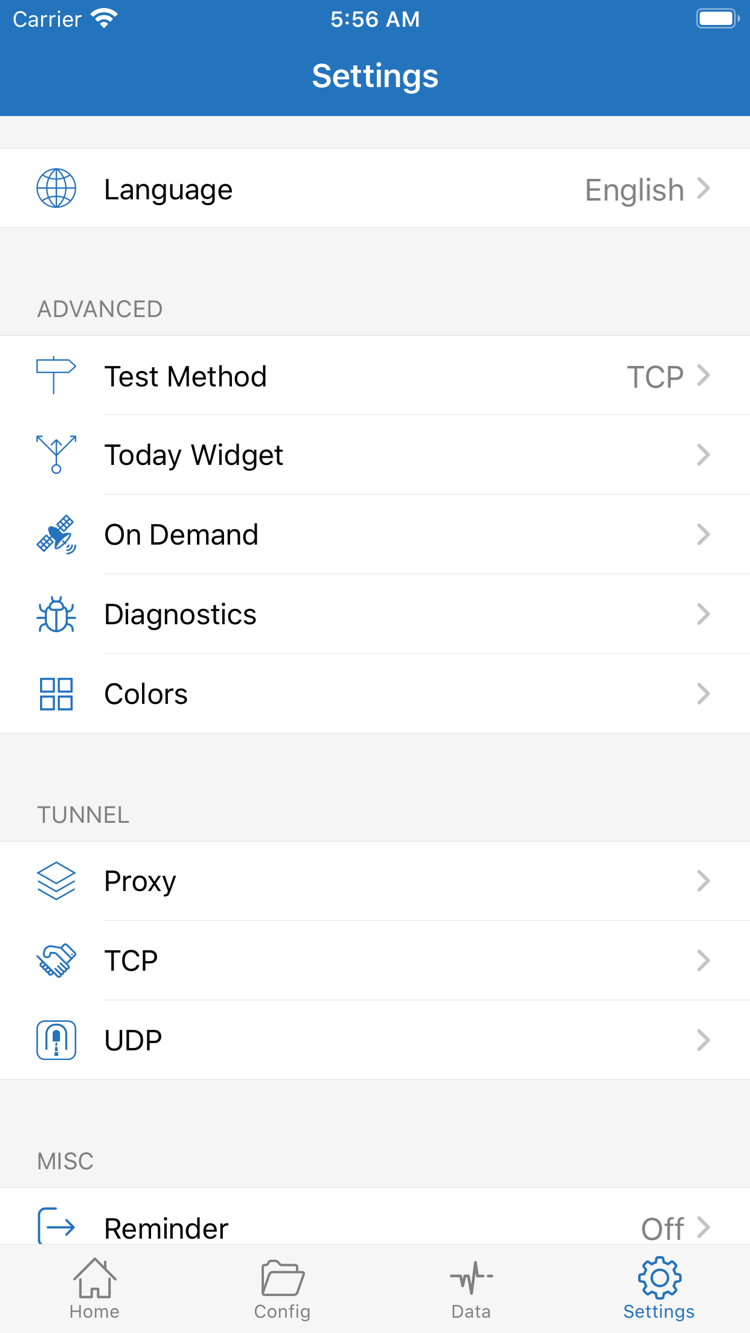
In Settings, find Test Method and understand the current method before interpreting Connectivity Test results. A test that doesn't respond may be related to the method, so check an actual request as well. For more detail, open Diagnostics and look for information around the time the error occurred. Proxy, TCP, and UDP are behavior settings, not switches that all need to be changed before connecting.
If the connection turns on or off automatically, check On Demand. If only the Today Widget status looks wrong, first verify the actual connection on Home, then troubleshoot the display. Handle one symptom at a time; don't conflate widget display, remote connectivity, and rule matching. After restoring any setting you changed, repeat the same test.
When asking for help, include your device's current network, import method, Global Routing mode, failed destination, and any message shown. Before sharing diagnostic details, hide the full subscription URL, Password, authentication identifiers, and other private fields; share only the error context needed to troubleshoot. Don't post your entire original configuration. If you're unfamiliar with protocol names or rule keywords, check the glossary before making further changes.
After troubleshooting, restore the server and mode you've verified, keep any working configuration, and turn off diagnostics you no longer need. Once the basic connection is stable, learn DNS, On Demand, and configuration management one at a time. Detailed instructions are in the Settings reference; you don't need to configure everything for your first connection.